

Overview
Introduction
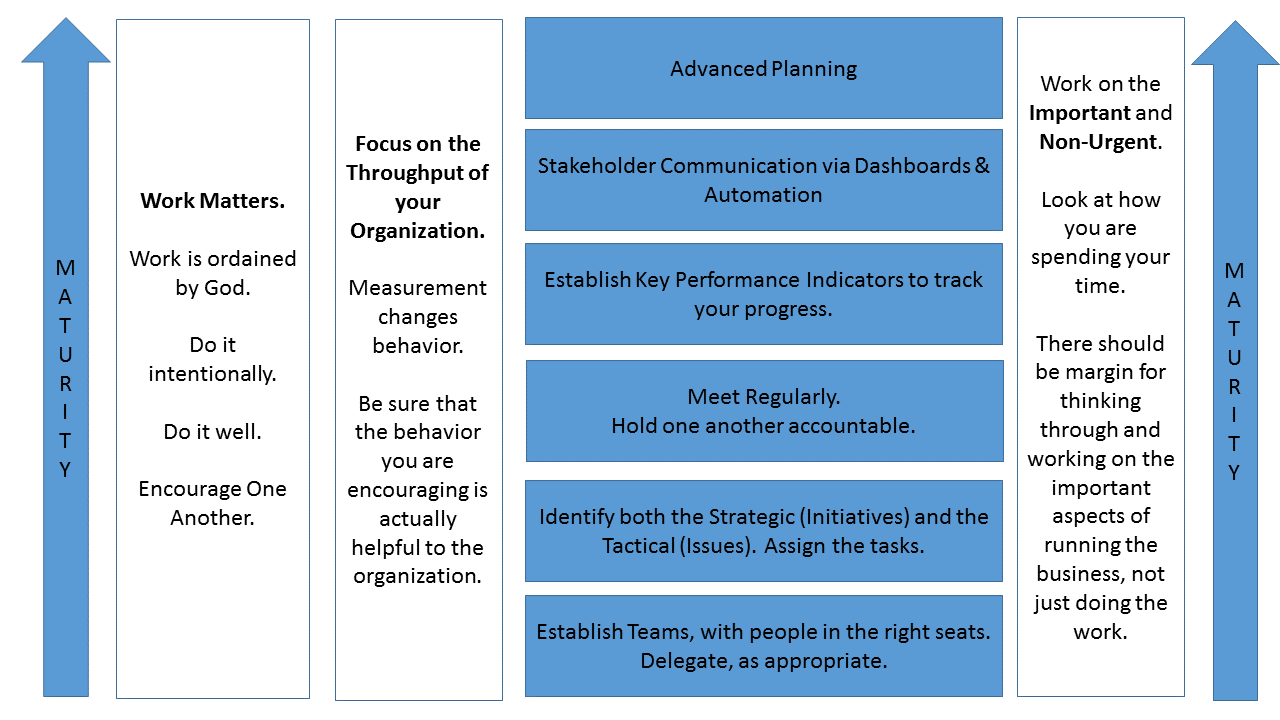
Welcome to encouragework.com, the software platform for teams working through the Encourage Work Maturity Model:
Once you register and login to encouragework.com, you will see the default screen which we refer to the ToDos or Home screen. On this screen you will see a consolidated list of any ToDos which have been assigned to you. You can also optionally display some Key Performance Indicators on this screen as a quick at-a-glance dashboard.

Working our way down the menu on the left side of the screen we have:
- ToDos -- this is where an individual user sees any ToDo which has been assigned to them personally.
- My Team -- the My Team area is where you can access information related to any of the Teams you are part of with the encouragework community. Note that an individual may be part of any number of teams, even across organizations.
- KPIs -- KPIs are managed by individuals, though delegated and shared across a variety of teams with full security controls.
- My Account -- use the My Account page to manage your account preferences.
- Billing -- this page allows you to view your current payment card information, your current agreement, and view past invoices. Note that only subscribers see this link. Team Members who have been invited to join teams will not see this page as there is no cost to them to use encouragework.
- Resources -- The Resources page lists a quick reference to helpful documents and guides for using the application.
- Help -- links to detailed step by step help content.
If you need assistance with the application, do not hesitate to contact the encouragework team.
Commentary
The encourage work maturity model has been inspired by a number of time-tested principles and years of practical use by hundreds of teams and thousands of users. The research and concepts in encourage work are assembled from a number of best-practices in books you've probably read or at least heard of. If you want to "go to the source" and learn the underlying principles, you are encouraged to browse our book library.
If you have never heard of "business systems" you may try starting here.
You can use encouragework with any modern "web browser" platform such as Mac, Windows, Chrome, Firefox, iPhone, iPad, Android, Kindle devices, etc. Modern versions of Internet Explorer will work. Older versions of IE may not offer a satisfying experience.
Teams
Invitation Only
The encouragework platform is structured around "Teams".
A typical subscriber will have a handful of Teams defined and each Team has one or more Members.
A typical encouragework subscriber has multiple Teams defined. Here is an example of a company with four Teams:
- Executive -- this team does strategic planning for the organization. Team members include the CEO, President, CFO, COO, Director of Operations, VP of Sales, VP of HR, etc.
- Sales - this team is responsible for Sales management. Team members include VP of Sales, President, VP of Marketing, etc.
- Operational - this team is responsible for overall operations of the organization. Team Members include COO, Controller, VP of Customer Service, VP of HR
- Ministry -- this team is responsible for Ministry activities including charitable giving and service projects. Team Members include CEO, VP of HR, Ministry Coordinator, etc.
As you can see, It is also common for there to be overlap between the Team members.
Start with a single Team -- in fact, when you sign up for encouragework, we create your first team for you.
To work with your Team, select the My Team menu:
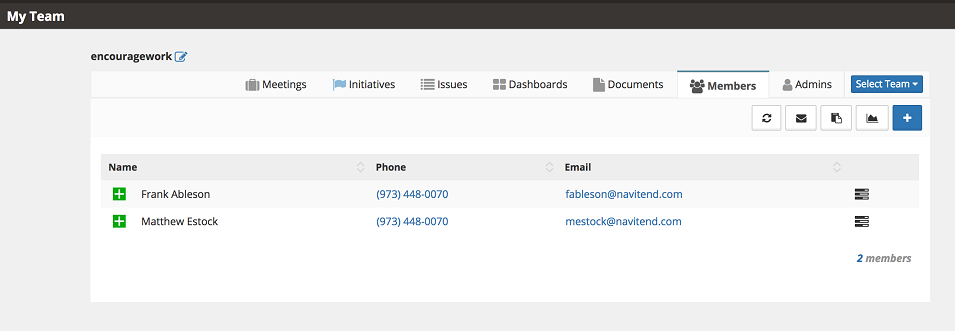
You will be presented with a "tabbed" interface where you can interact with your Team(s). The Members tab lists current Members of this Team.
To add a new Team Member, select the  button and provide the new Member's email address:
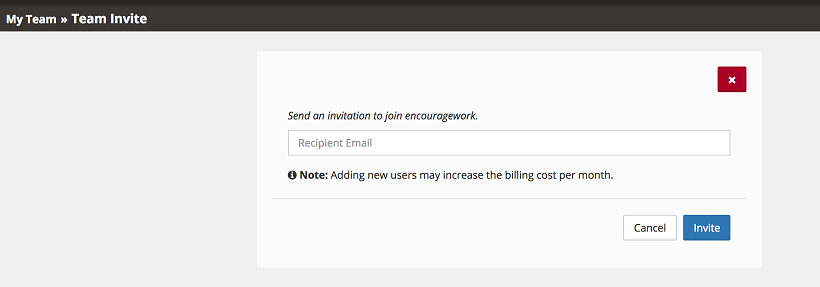
Note that additional Team Members may have an impact on the subscription cost. encouragework tracks unique "Users" across Teams. There is no additional cost for one person who is on multiple Teams owned and managed by the same subscriber. For questions around billing and subscriptions please contact us.
Only "Team Administrators" can manage the Membership for a Team.
From time to time you may need to Remove a Member from your Team, or possibly Transfer a Team Member from one Team to another.

The "Admins" Tab lists Team Administrators. An Administrator can invite additional Administrators. Grant this privilege with understanding that the new Administrator has significant capabilities and this should not be done casually. It is typical for a Team to have one, two or three administrators, depending on the size of the Team and the organization's structure.
Commentary
You can start working directly with the default Team provided for you. Or, you can rename the Team or create multiple Teams from the start. The recommendation is to start working with the single, default Team and then once you have a comfort level of how you want to arrange your staff and manage your data you can expand to additional Teams.
My Team
The MyTeam page is broken into sections for various aspects of the Team's activities, each discussed in its own section.

Team Name
The Team Name is displayed in the upper left portion of the screen ("encouragework" in this example). Clicking the pencil icon to the right of the Team name loads the Team Settings Screen.
Select Team
A particular user may be a Member of more than one Team. To jump from one Team to another, use the "Select Team" drop-down menu to the right.
Commentary
The information in the MyTeam section is considered Confidential to the members of that Team. As an individual user invited to a particular Team, you should treat the content managed here with the same care you would any other Confidential company information.
Be responsible with this information access -- this is a trusted group of peers and confidentiality is paramount.
Team Settings
This section is relevant for Team Administrators only. If you do not see the "+ Add New Team" menu option and you would like to have the ability to create and manage your own Teams, you will need to Sign Up to create your own account with encouragework. If you are a Member of a Team and think that you should have additional access to manage the team (i.e. your supervisor has asked you to do so) you need to be "invited" to become an Administrator for your Team. As always, if you need further assistance you can always contact us for help in managing your Team(s).
To create a new Team, choose the "Add New Team" menu option.
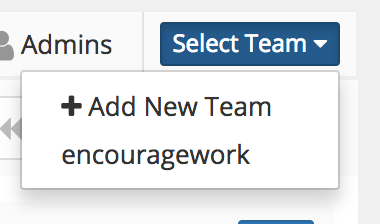
This will prompt you for a Name for your new Team. You also need to choose the frequency of your Team's meetings. This can be changed later, however most functional Teams will meet Weekly.

You can switch between one Team and another via the "Select Team" menu to the right of the MyTeam screen.
Note: Any time you switch from one Team to another, all of the selected Team's data is downloaded to your browser.
If you would like to modify the settings for your Team, choose the small pencil icon to the right of your Team's name:

This brings up the Team Settings screen.
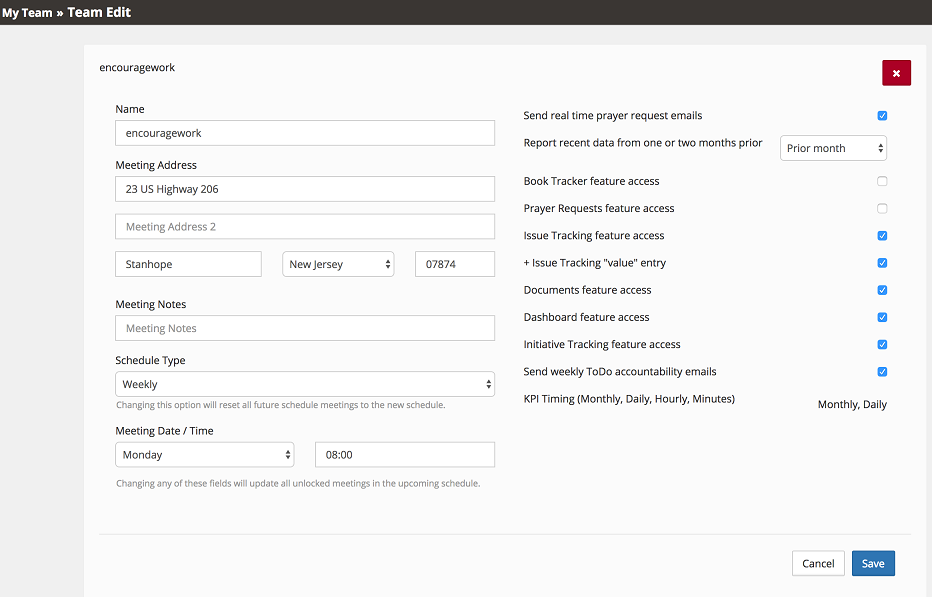
As you can see from the image above, there are a number of attributes for each Team.
The left side of the screen includes the name of the Team, the meeting address, and general notes for the meeting location and the schedule.
The items on the right govern the way in which encouragework interacts with your Team and its members. Your list of features may vary depending upon your subscription level. If you have any questions, do not hesitate to contact us for assistance.
| Setting | Comment |
|---|---|
| Send weekly ToDo accountability emails | Enable this option if you want to send your Team Members an email each Sunday evening with the progress of your Team ToDos between meetings. For Teams that meet weekly, this may be a bit too much communication. For Teams which meet monthly or quarterly, this is a highly recommended feature. |
| ToDo Fine Amount ($) | Some mature Teams will dial-up the accountability experience by attaching monetary fines to anyone who has missed a ToDo. It is a common practice to use any "fine money" for charitable contributions that the Team agrees upon. |
| Prayer Requests feature access | Enable this option to track Prayer requests for this Team. |
| Send real time prayer request emails | Enable this option to permit sending notifications to Team Members of prayer requests. Note that individual Team Members may opt-out of this feature. |
| Book Tracker Feature Access | Enable this option to permit individual Team Members to record books, classes and other professional development activity. This information is reported on under the "Members" tab and is also available under My Account in a year-end summary format. |
| Issue Tracking Feature Access | Enable this option to enable your Team to record "Issues". If your Team adheres to Traction/EOS, you will want to keep this feature enabled. If your team has a habit of working on the Important but Not Urgent, this is the place to record items for Team discussion. |
| + Issue Tracking "value" entry | Enable this option if you are tracking Issues and want to use the prioritization feature enabled in encouragework. |
| Documents Feature Access | Enable this option to create and manage documents using encouragework's WYSIWYG web editor. This feature also includes a number of document templates from popular business systems. |
| Dashboard Feature Access | Enable this option to setup one or more Dashboards for your Team. Dashboards allow you to combine any number of Team related content into a single URL which may be displayed in any modern browser. If you need assistance in setting up a Dashboard in your facility, please contact us and ask about our encouragework appliances. |
| Initiative Tracking Feature Access | Enable this option if your Team sets quarterly or other "strategic" goals. If your Team adheres to Traction/EOS, this is where you manage your "Rocks". |
| KPI Timing | This feature displays the options available to this Team for KPI Time Frames. Most Teams track data on a Monthly, Weekly or Daily basis. Weekly data is easily managed by simply entering one value per week on a consistent day. If your team has the need to track information at a higher frquency -- for example you are tracking temperature throughout the day or perhaps shift production by hour, please contact the encouragework team so we can help you get started with our Application Programming Interface. |
| Report recent data from one or two months prior |
For teams that meet monthly, it may be difficult to "close out" the books in time for an early in the month meeting. This option allows for displaying KPIs in the KPI Summary view from either the PRIOR month or TWO months back. This is a seldom used feature for encouragework Teams as you will more likely want to meet on a Weekly basis and track your KPIs on a Daily basis. This way your Meeting Scorecard will have very up to date and relevant information. |
Commentary
Setting up your Team is generally a one-time experience, though you may need to tweak some settings here over time as your Team matures.
Meetings
The Meetings tab presents a summary of Team activity and is a central point of activity by a Team during a weekly or monthly meeting.

On this screen you see:
Meeting Time and Place
You can modify a single meeting's time by clicking on the pencil/edit icon next to the Meeting date. To change the regularly scheduled meeting times moving forward, select the pencil/edit icon to the right of the Team name.
Meeting Notes
You can optionally record meeting notes, which is a recommended practice. You can also choose to create a new entry in the "Documents" tab if you prefer.
Scorecard
The Scorecard is a quick at-a-glance means of tracking KPIs which are relevant to the mission of this Team. In the scenario where there are multiple Teams, it is common for there to be some "overlap" in which KPIs are displayed, yet the specific KPIs should be oriented towards the Team's purpose and activity.
Setup the Scorecard by selecting the  icon to the right of the Scorecard.
Each KPI which has been shared with this group is available for inclusion in the Meeting Scorecard. While a number of KPIs may be available to choose from, it is advised to select a handful of very important metrics which are tied to this particular Team's focus. Be sure to have an appropriate balance of Leading and Lagging Indicators.

For each KPI share with this Team, you have three options: Do not include, Include in Table format, Include in Sparkline format.
Example of a tabular format showing "Weekly Sales" for the prior month. Here we see four weekly values from the prior month.
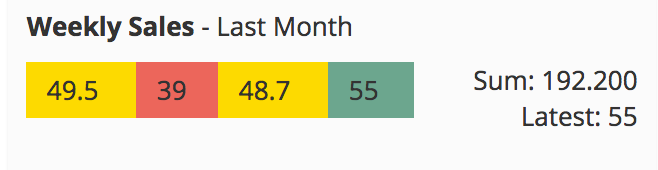
When using the Sparkline option, we see a simple "line chart" where each point is highlighted in a color. This screen shot was taken early in the month when there were only a few entries.
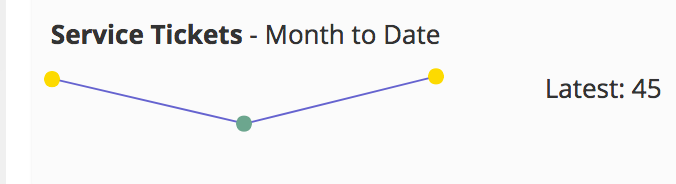
The Yellow, Red, Green color codings are related to how the recorded value compares to a "theshold" value. Read more on this in the section on KPIs.
For each selected KPI, you must choose from a number of time-frame options. Options for Scorecard time-frames include:
- Week to Date
- Last Week
- Month to Date
- Last Month
The Meeting tab lists the ToDos assigned to each Team Members for "This Meeting" as well as for the "Next Meeting". This display is an easy at-a-glance view of what is due this week and what is coming up the following week.
ToDos may be easily drag-and-dropped from one Team Member to another as well as moved from one meeting or another. To change a ToDo's due date to a different date, you can click through to edit the details of that ToDo.
You can advance back and forth in time via the "VCR" buttons at the top right of the Meeting tab.

- From left to right, the buttons on this Toolbar:
- Refresh this Team view -- useful to make sure you have the latest data for this Team.
- Print - nothing like a hard copy to doodle on during a meeting.
- Navigate to the Oldest/Earliest/First Meeting
- Navigate to the Previouse Meeting
- Navigate to the Current Meeting
- Navigate to the Next Meeting
- Navigate to the furthest scheduled meeting in the future
Commentary
You will likely spend a good portion of your weekly Team meetings centered around this screen.
Initiatives
The Initiatives tab is where Teams manage "strategic" activity such as long term goals, sometimes referred to as "Rocks" by Business Systems such as Traction/EOS.
To create a new Initiative, click the icon.
Record the title of the Initiave, the "owner" of the Initiative ( a Team Member ), as well as any planned activity.
You can optionally assign ToDos to an Initiative.

To edit an Initiative ToDo, select the edit icon to the right.
An Initiative ToDo is highlighted in other areas of encouragework with a blue "badge".
Here is the same ToDo shown on the Team Members' Home/ToDos screen.

And here again in the Meeting Tab.

If you hover over the badge, the description of the Initiative is shown, bringing context to the ToDo's greater purpose.

Lastly, an Initiative ToDo may also be (optionally) associated with an "Issue", which is described next.
Commentary
encouragework does not enforce a specific time-frame for Initiatives. They are often aligned with a quarterly or annual planning horizon, but not every Team's schedule is nice and tidy, so we provide flexibility here. Initiatives are either Open or Closed (i.e. not done yet, or completed). Setup your Initiatives at your strategic meeting times and assign your specific ToDos associated with these Initiatives to Team Members. At each regularly scheduled meeting, be sure to check in on the progress of these Initiatives. It doesn't have to take a long time -- just make sure you touch on any "Open" Initiatives and find out if someone is stuck on something that could hold up the larger picture.
You want to treat this much like a bathroom scale -- take a measurement on a consistent basis and don't panic if you see something you don't like! Make note of the situation and plan accordingly.
Issues
The Issues tab is where day to day items which are "Important but not Urgent" are recorded. These are the items that need to be discussed, prioritized and addressed with diligence.
To create a new Issue, click the icon and record the Issue and optionally record the anticipated "Benefit" of resolving the Issue and the anticipated "Cost" of resolving the Issue.
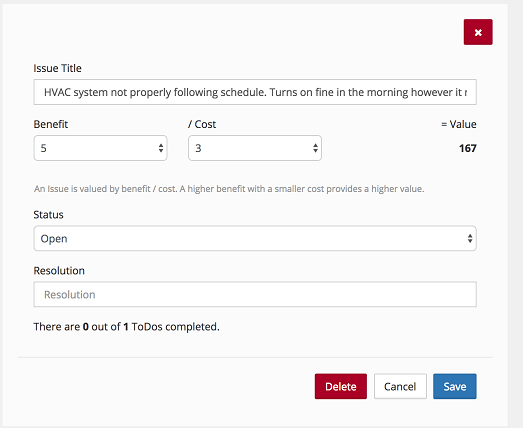
The Benefit divided by the Cost calculates a "Value". This value field is used for sorting Issues to help prioritize activity. Learn more about the encourage work prioriy approach. If the idea of benefit and cost are a distraction to you, simply disable the "Value" feature by unchecking the Team Settings option entitled, "+ Issue Tracking "value" entry".
Once an Issue is created, you can add ToDos or edit the Issue via the respective action buttons.
Issues can have zero or more ToDos associated.
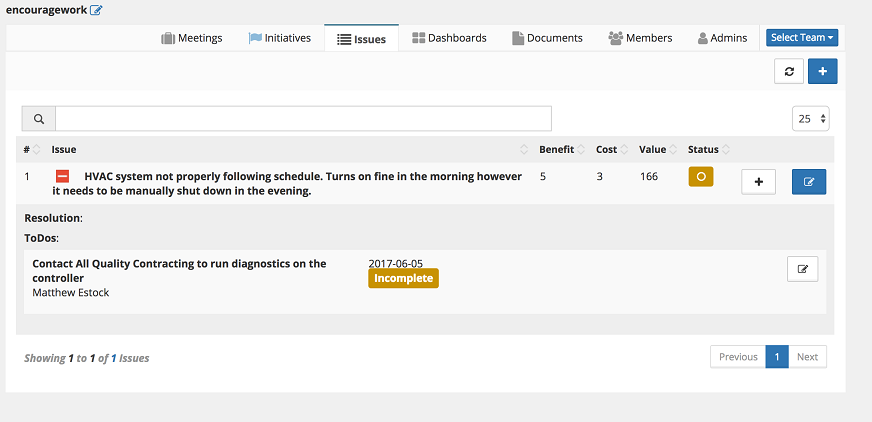
Note that an Issue ToDo may optionally be associated with an Initiative.
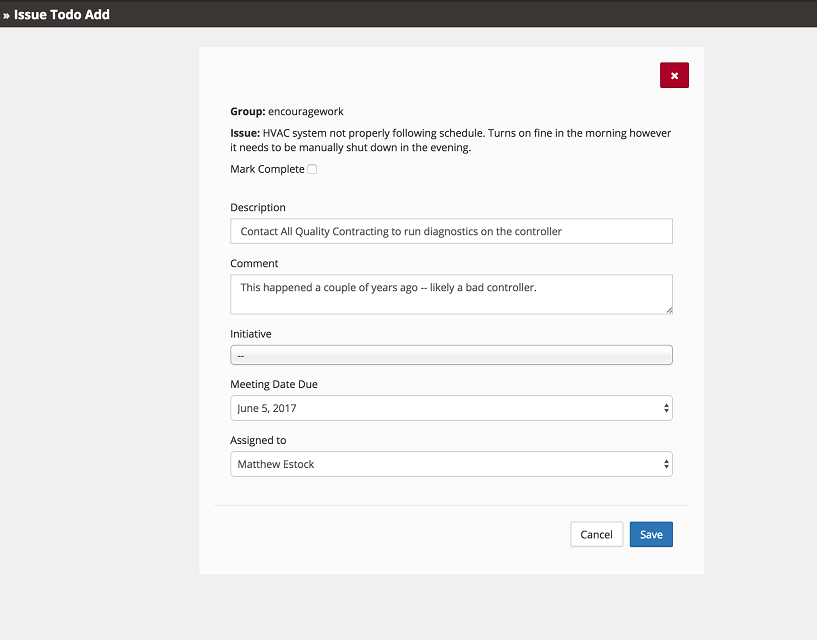
ToDos related to Issues are indicated with a gray badge.

ToDos may be associated with both an Issue and an Initiative. For example, let's say you have an Issue which is related to the company's competitive position in the local market due to an out-dated web presence. This may lead to an Initiative to update the corporate website.
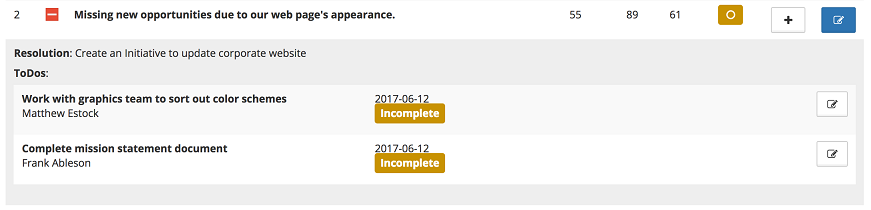
Note that the ToDos can have both badges -- one for an Initiative and one for an Issue.
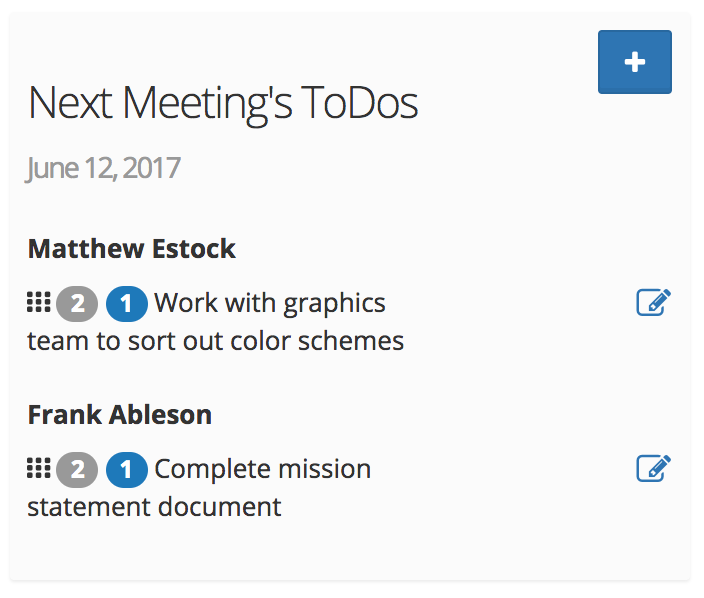
Commentary
Note that the encouragework platform takes a very flexible approach to data management. A user can add or remove an associated Issue or Initiative at any time. When editing a ToDo from the Meeting page, you can adjust both the Issue and the Initiative, as desired.
No, you cannot have a ToDo tied to multiple Initiatives or Issues.
Dashboards
Dashboards are employed in encouragework to aggregate managed data and share it with stakeholders. A Team may have zero or more Dashboards, each with:
Title
Sub Title
Color Theme (light or dark)
Active Indicator (Yes/No)
Unique Link -- URL used to load the Dashboard
Whitelisted IP address for securing the locations from which the data may be viewed.
Dashboards are managed in a list.
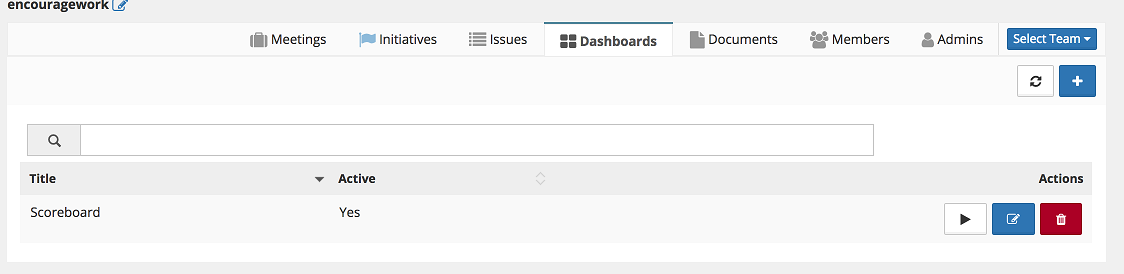
Each Dashboard has three buttons associated.
View - Open the Dashboard into another browser window or tab.
Edit - edit the properties of the Dashboard.
Delete - confirms the Deletion action and then removes the Dashboard.
Each Dashboard has zero or more items. Individual Items may be easily sorted by a simple drag-and-drop interface.
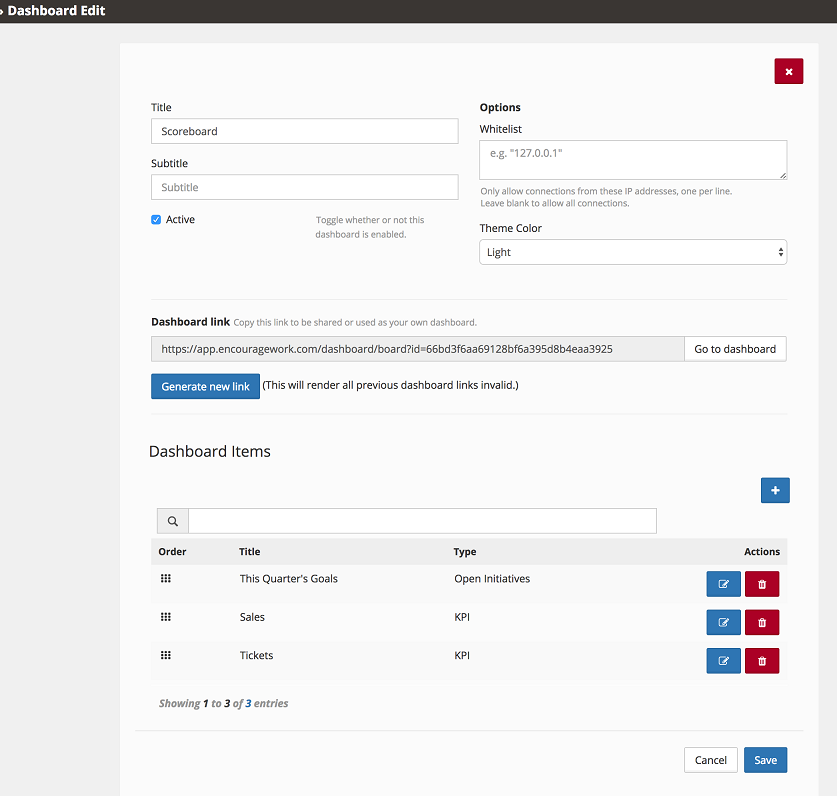
Each of the Dashboard Items may be edited or removed via the respective action buttons.
When adding items to a Dashboard, there are a number of options to choose from.
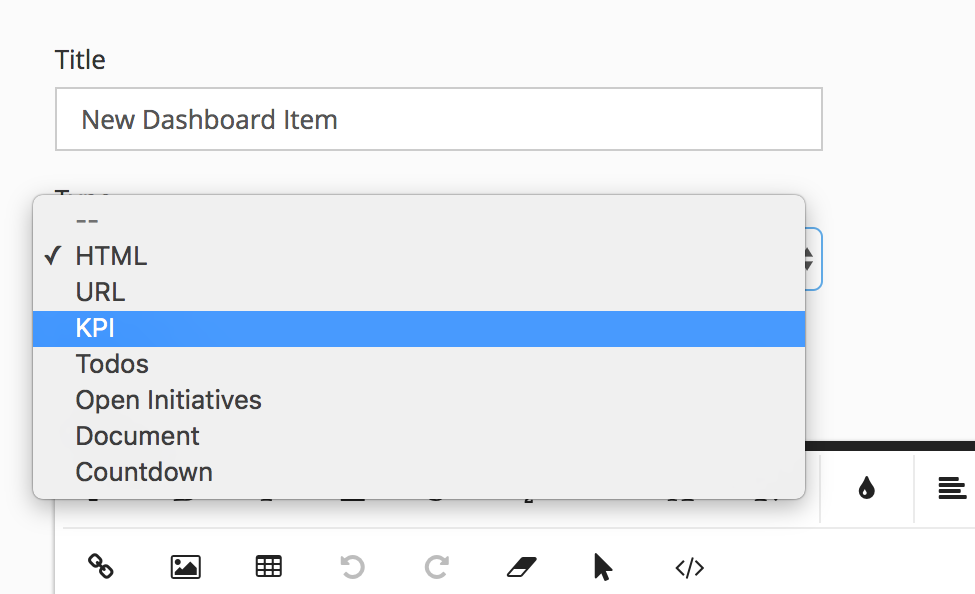
Each of the Dashboard Item types have distinctive attributes.
HTML
Paste in or edit custom HTML via the WYSIWYG web editor. If you want to do something custom, you can select the </> menu to display the html "source code". If you are looking for some help with your HTML skills, you can try W3 Schools HTML Reference.
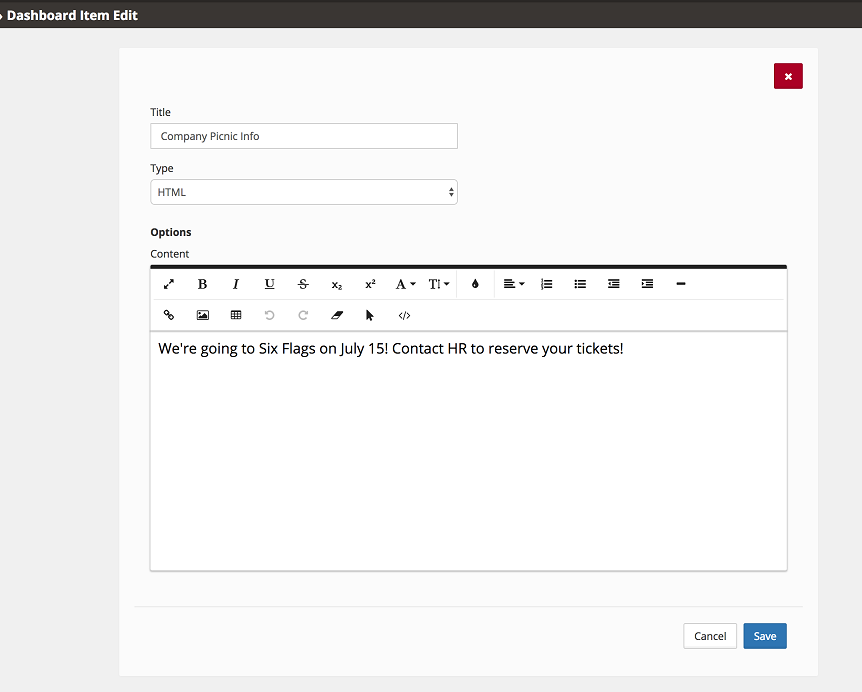
URL
Load in an external website by providing a fully qualified URL. This URL is shown in an iframe.
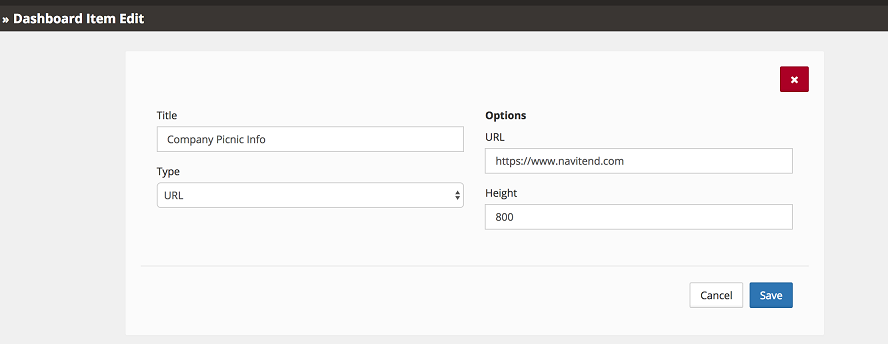
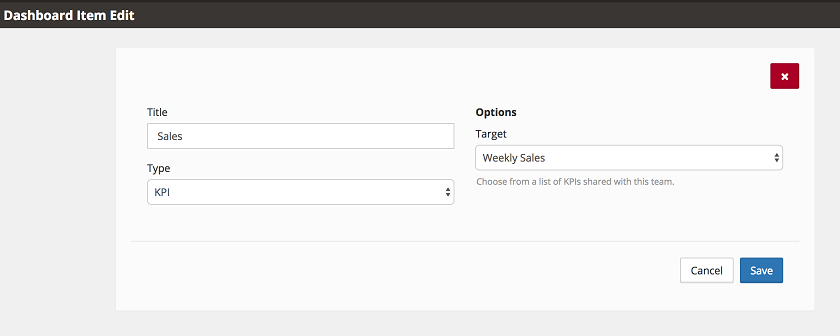
KPI
Choose from among the list of KPIs shared with this Team.
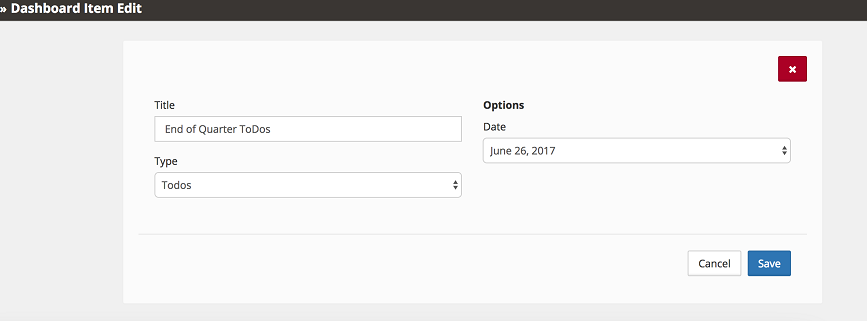
ToDos
Display ToDos associated with this Team by choosing the a Due Date. This is one way to display the ToDos for a particular Team. Some Teams use this to post their "big goals" or "Rocks" for all to see.
Open Initiatives
Display the open Initiatives for this Team. Optionally include the Owner of the Initiative and/or include the ToDos associated with each Initiative.

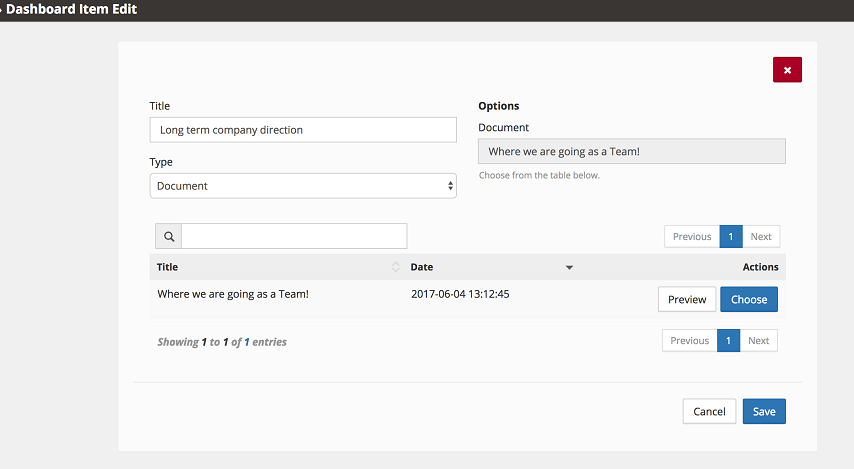
Document
Display the contents of a Document associated with this Team.
Countdown Timer
Display a "Countdown Timer" by providing a Date and Time for an upcoming important event for this Team.

Commentary
Dashboards are useful and can be fun. A great use for a Dashboard is as a means of communicating with an interested Stakeholder, such as an accountant, book-keeper, shareholders, not-so-silent partners and management consultants. By providing a link to a specific partner, you can control what data is visible to them without needing to manage additional "users" with passwords, etc. The recipient can simply "bookmark" the URL you provide and they will always have access to up-to-date data.
If you need assistance in bringing your Dashboard to life, please contact us. We have successfully deployed these dashboards to large screen monitors with low-cost wireless devices. No more need for an expensive PC, an ethernet cable run, learning Power Point, network shares with Excel documents. Yes, we've been there before too. There is a better way!
Documents
encouragework allows Teams to manage strategic documents via the Documents tab. A number of popular document types are pre-loaded as "templates". It is also easy to create your own templates for re-use.
Documents are organized in a searchable and sortable list.
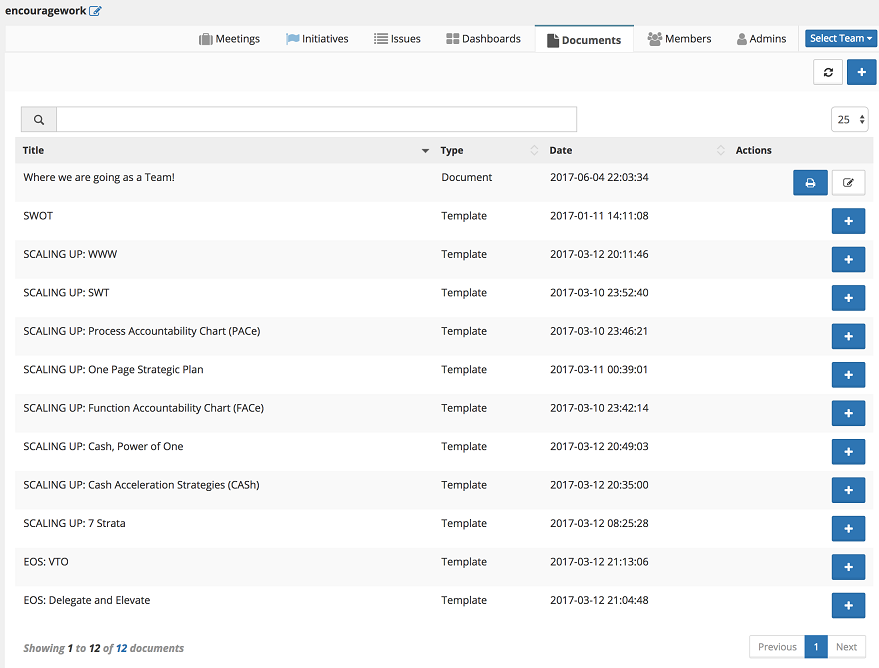
Each Document may be viewed in a print-ready window or opened for Edit.
To create a new, blank Document, select the in the upper right.
To create a new copy of one of the provided Templates, select the to the right of the corresponding Template.
Once loaded for Edit, use the WYSIWYG web editor. to edit the document. Images may be embedded into the diagram and you can also view the "source" if you want to insert some custom HTML. The editor includes Tables and other commonly employed elements.
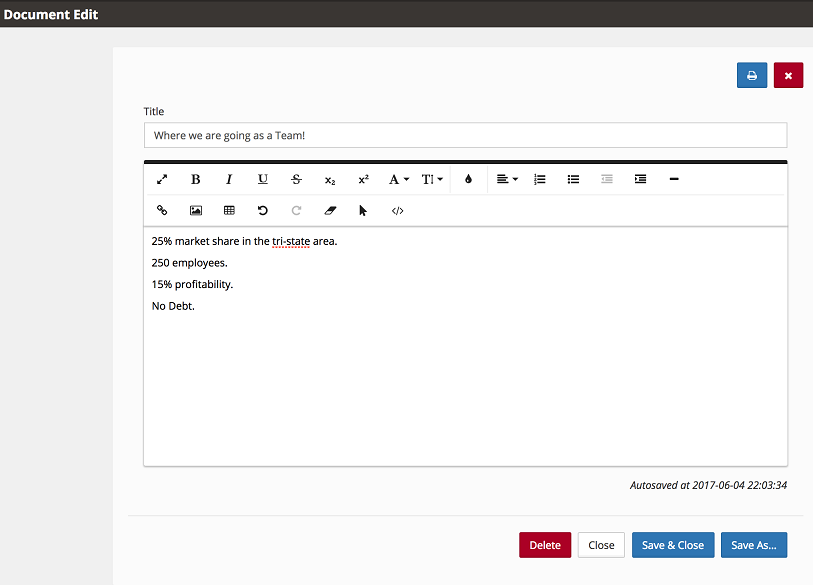
Documents are auto-saved every few moments. When complete with your editing, select the "Save & Close" button. Alternatively you can choose the "Save As" to save the document under a different title or to create a new "template" to use as a starting place for new Documents.
Commentary
Documents are stored as HTML, with embedded images as desired. If there are specific Templates that you would like to see in the platform, please contact us.
Members
Members are displayed in a sortable list.
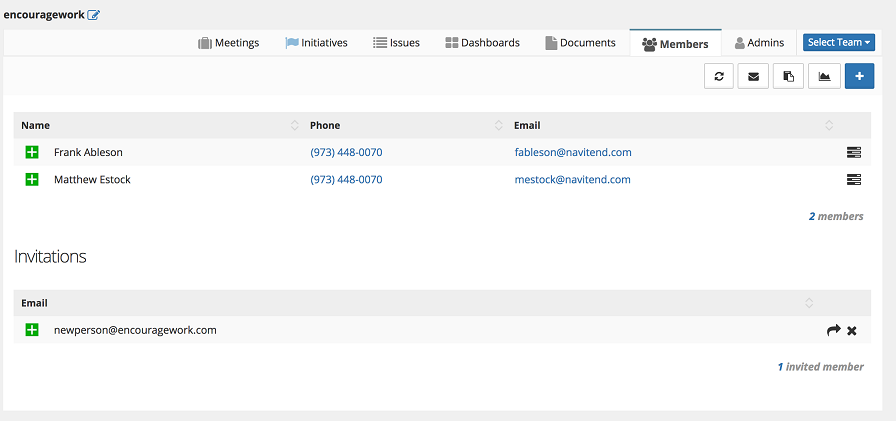
A Member may be Removed (or Transferred) by expanding the entry via the  icon and then selecting the appropriate action.
When a Member is removed, they may be restored at a later point in time. Before Removing a Member, it is a good practice to transfer any KPIs that they manage to another Member.
Actions
There are a few buttons at the top of the Member tab:

Refresh -- causes this tab's data to reload.
Email -- generates an easy-to-manipulate list of email addresses for each active member.
ToDos -- generates a summary page for ToDos attempted (and completed) by each Member.
KPI Summary -- generates a "spreadsheet" like view of KPIs shared with this Team. Note that at most five KPIs are visible on this summary report due to constraints of the physical output size.
Invite - send an email to someone you want to add to this Team. These should only be people who are actively engaged with the Team. If you just want to share the occassional piece of information, consider using Dashboards or Email Summary (under My Account).
Once someone has been invited, you can view the outstanding invitations below the Members list. If someone has not received an invitation and you want to resend it, hit the  icon. If you decide that you want to recind an invitation, select the
  icon.
icon.
Member Generated Content
Some Teams will choose to spend time in this tab to check in on each Team Member's activity for the week or month.
Clicking on the  icon to the right of a specific Member brings up an interactive and detailed screen for the Member. The screen shows any ToDos as well as KPIs shared with this Team which are managed by this Member.
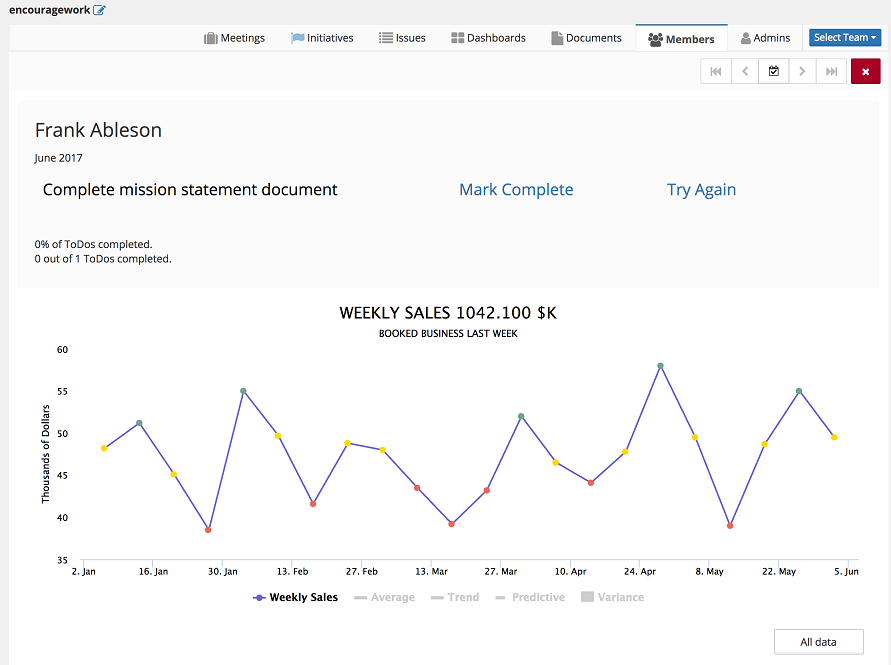
For any ToDos which are not marked as being complete, you can do three things:
1. Mark Complete - you just forgot to do so before coming into the meeting.
2. Try Again -- this option makes a copy of the ToDo for the next meeting.
3. Do nothing -- be sure to examine your ToDos to make sure they are S.M.A.R.T.
For each KPI, you can modify the chart to gain insight and intuition to the data.
You can add the following calculated overlays:
Average, Trend, Predictive, Variance (relative to Green and Red threshold values).
If a KPI has any overlays configured, they can be toggled on and off as well.
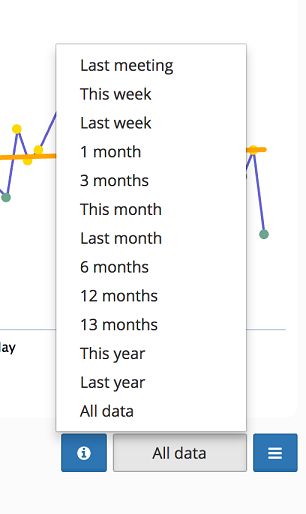
Tap on the timeframe button in the lower right (shown as All data in the image above). This presents a number of options to select from:
Admins
Team Administrators or simply, Admins, are managed under the Admins tab.
Administrators are shown in a sortable list.
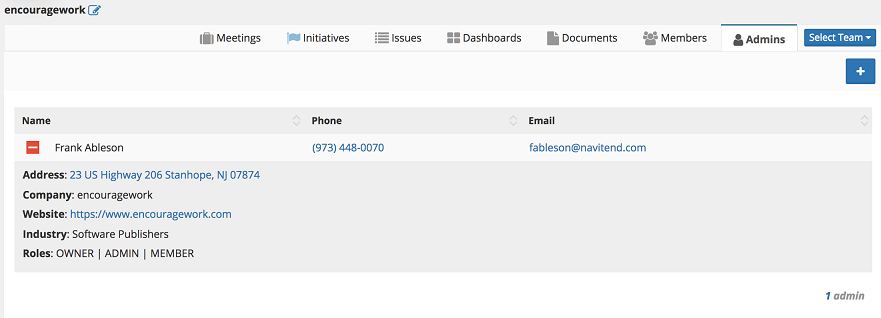
There is always exactly one OWNER who is automatically also an Admin and a Member of a Team. It is possible to remove the Membership role, however an Owner cannot be removed from the list of Admins. You can invite additional people to be Admins of your Team via the icon, similar to the Membership invitation process.
Only Admins can manage Members for a particular Team.
Commentary
Be careful to only invite trusted persons to be Administrators of your Teams.
ToDos
ToDos
The main screen in encouragework displays your ToDos in a searchable and sortable and grouped by month.
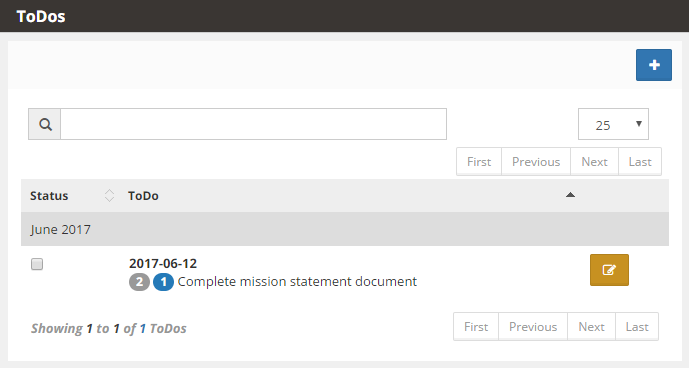
In order to "mark a ToDo as being complete" you can simply click on the "checkbox" to the left of each entry.
In order to add an additional ToDo, click on the "+" icon.

In order to edit one of the existing ToDo's, select the "pencil" button.

ToDo's with the mustard color pencil icon are ToDo's assigned by a Team rather than by the individual personally.
ToDo's may optionally be associated with an "Initiative" -- which is something that your Team is focusing on during a planning cycle. Initiatives are sometimes referred to as "Rocks". These are big goals that, when achieved, help move your team in a strategic direction.
A ToDo may also be associated with an "Issue". An Issue is something which is identified during the course of business as an "Important but Not Urgent" item which needs attention. The typical scenario is that an Issue is Idenified and put on the "Issues List" for the appropriate Team. During a regular weekly or monthly meeting, the Issue is Discussed and a Solution is proposed. This process is sometimes referred to as "IDS" if you are exercising Traction/EOS.
Regardless of whether a ToDo is associated with an Initiative or an Issue, every ToDo has a few things in common:
It is associated with a specific Team.
It is time-bound, i.e. it has a specific due-date.
It has a title.
It is marked complete or incomplete.
It optionally has additional notes for further reference.
ToDos are visible to every Team member under the "My Team -> Meeting" and "My Team->Members" tabs.
Optionally, you can receive a weekly summary email listing the open and closed ToDos by Team Member. This is useful for accountability and visibility amongst team members.
Commentary
ToDos are setup during each meetings and then are "due for completion" by the time we walk into the next meeting for the respective Team
ToDos Add
Creating a new ToDo is as simple as entering data into the "ToDo Description" field.
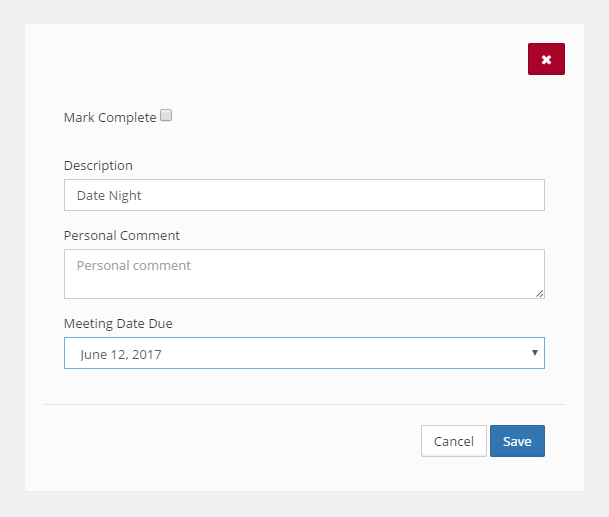
The ToDo is really just the "Description" field.
The Personal Comment is just that -- Personal. This can be used to record the "why" of the ToDo, or perhaps provide a note about "how" you plan to execute the ToDo.
If you are a member of a single Team, your Meeting Date Due field will default to the next meeting date. You can change that to a later date if you like. For example, you may have a ToDo that needs to be executed, however it is of a lower priority, so you can schedule it for a meeting date in the future.
Likewise, if you know that there are some things you need to accomplish and want to get a jump start on your ToDo planning, you can enter your ToDos prior to your Team's meeting time.
Multiple Team Memberships
If you are on more than a single Team, you need to first select which group this ToDo is associated with -- once selected, the date will be available to choose.
Additionally, you can optionally choose to "Share" this ToDo with one or more additional Teams. This is a "multi-select" experience, so you may need to hold the Control or Command button depending on what computer you are accessing this screen from. Most mobile devices make this very easy to do.
If you want to "uncheck all" of the Shared Teams, click on the "Clear" link.
To learn more about multiple groups, click here.
Commentary
ToDos should be "SMART"
Specific
Measureable
Attainable/Achievable
Realistic
Time Bound.
for example:
Don't say, "I am going to lose weight". Say, I am going to lose 5 lbs.
Don't say, "I am going to exercise". Say, I am going to workout four times, for 30 minutes each.
ToDos Edit
To manage an existing ToDo, select the edit/pencil icon to the right of the ToDo:
This will load the selected ToDo into an edit screen:
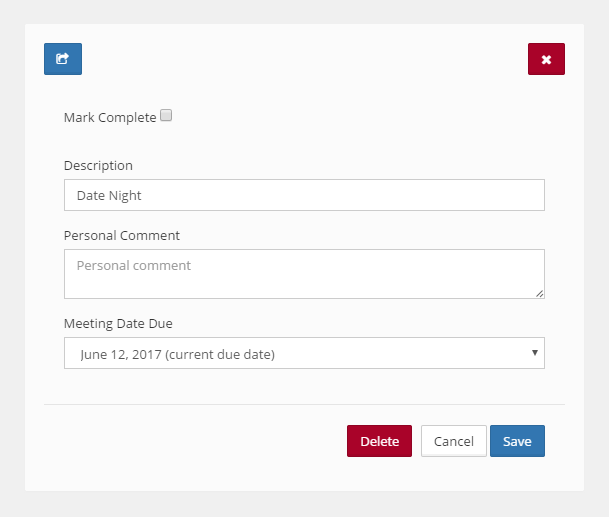
Generally speaking you will edit a ToDo if you want to update the "Personal Comment". For example, let's say you have a ToDo which states:
"Run five miles, three times".
When you complete your first 5 mile run, you can track your progress by editing the ToDo and making a note in the "Personal Comment" field.
Than tap on "Save" and hit the shower.
Other reasons to Edit a ToDo include:
- You have completed the ToDo and you want to record it as complete. You can select Edit and then check the "Mark Complete" checkbox.
- You want to "clone" this ToDo for next month. In order to clone the ToDo, select the "forward" icon.

- You want to actually Delete this ToDo. This might occur during (or before) your Team meeting and you determine that the ToDo is poorly written or is simply not a good ToDo. You select Delete. You will be prompted to confirm your decision:

- You want to choose an additional group to share your ToDo with. For more information on working in Barnabas with multiple groups, click here.
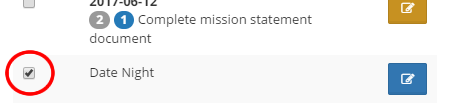
If you simply want to indicate that you have completed a ToDo, you do not need to actually click all the way through to this screen. From the main ToDos list, you can simply click on the checkbox to toggle the status of the ToDo.
Commentary
Managing your ToDos list is not meant to be done the night before your Team meeting. Have a look at your ToDos early and often to make sure you allocate enough time to execute on your commitments.
Book Tracker
Book Tracker
The BookTracker feature is a means for users to record books they have read, classes attended, certifications received, etc. It is part record-keeping, part "I read this awesome book, you should too" in a structured manner.
When you first enter the Book Tracker, you view a list of the entries you have made over time.
The list is sortable and searchable.
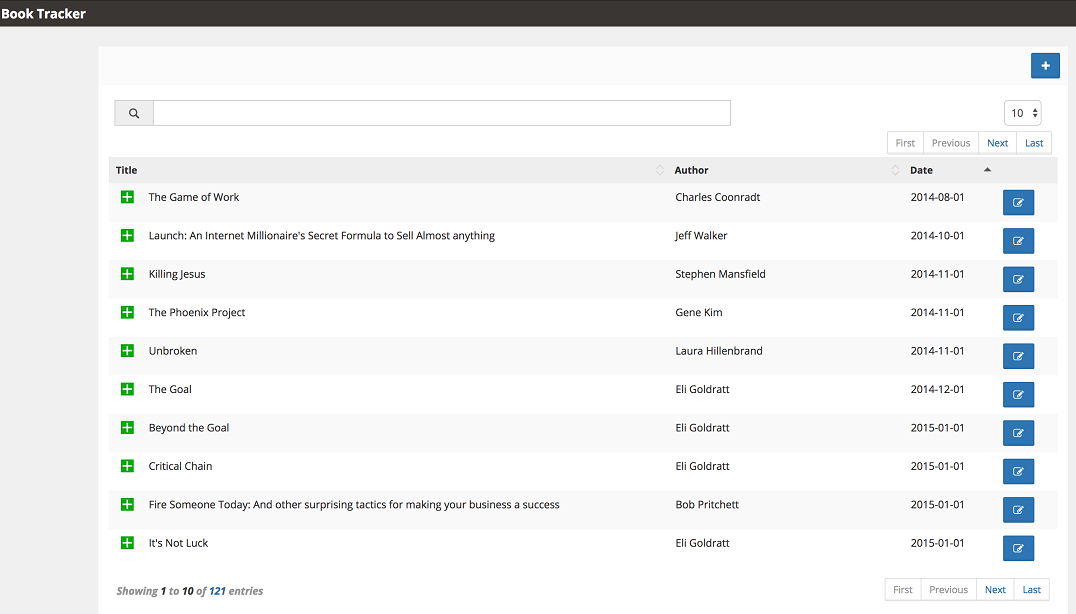
The data you manage for each entry includes:
Managed Data
| Title | This is the name of the book or the title of the course. |
| Author | Name of the author, or organization organizing the class. |
| Date | This is the date when the book or class was taken/completed. |
| Description | This is your opportunity to write a brief review or record of your experience with the book or course. This is where you can add value to your peers so they can determine if the book or course is worth their time investment. |
| Personal Comment | Here is where you can write your own notes that are not shared with anyone else. |
| Private | If you want record of this book or course for your own personal record keeping, but you do not wish to share it with anyone else in your groups you can simply select "Private". |
In order to add a new entry, select the plus button at the top right.
In order to edit an existing entry, select the pencil button.

Commentary
In the course of a meeting, we often hear something along the lines of, "I just read this book on leadership". Two people raise their hand and ask for the name of the book. You take notes. You may or may not follow up and purchase a copy.
With the use of the Book Tracker applet, we can share not only the books we have read, but also record our "reviews" and even thoughts we have on the book that we might prefer to keep private.
You can even share the information with multiple Teams. For example, you can record the book once and share it with each of your Teams. I
Book Tracker Add
The BookTracker feature is a means for users to record books they have read, classes attended, certifications received, etc. It is part record-keeping, part "I read this awesome book, you should too" in a structured manner.
When you first enter the Book Tracker, you view a list of the entries you have made over time.
The list is sortable and searchable.
The data you manage for each entry includes:
Managed Data
Field NameCommentPublic or Private
TitleThis is the name of the book or the title of the course.Public
AuthorName of the author, or organization organizing the class.Public
DateThis is the date when the book or class was taken/completed.Public
DescriptionThis is your opportunity to write a brief review or record of your experience with the book or course. This is where you can add value to your peers so they can determine if the book or course is worth their time investment.Public
Personal CommentHere is where you can write your own notes that are not shared with anyone else.Private
PrivateIf you want record of this book or course for your own personal record keeping, but you do not wish to share it with anyone else in your groups you can simply select "Private".Private
In order to add a new entry, select the plus button at the top right.
In order to edit an existing entry, select the pencil button.
Commentary
In the course of a C12 meeting, we often hear, "I just read this book on leadership". Four people raise their hand and ask for the name of the book. You take notes. You may or may not follow up and purchase a copy.
With the use of the Book Tracker applet, we can share not only the books we have read, but also record our "reviews" and even thoughts we have on the book that we might prefer to keep private.
You can even share the information with multiple teams. For example, if you are a C12 Chair and have multiple groups, you can record the book once and share it with each of your CEO groups. If you use Barnabas for your private company, you can likewise record the book entry once and share it with both your C12 peers and your executive management team, which may include a Key Player.
Book Tracker Add
Adding a new book (or class) to your list is as simple as filling in the fields and hitting "Save".
Here is a description of each of the fields in the Book Add screen:
Field NameCommentPublic or Private
TitleThis is the name of the book or the title of the course.Public
AuthorName of the author, or organization organizing the class.Public
DateThis is the date when the book or class was taken/completed.Public
DescriptionThis is your opportunity to write a brief review or record of your experience with the book or course. This is where you can add value to your peers so they can determine if the book or course is worth their time investment.Public
Personal CommentHere is where you can write your own notes that are not shared with anyone else.Private
PrivateIf you want record of this book or course for your own personal record keeping, but you do not wish to share it with anyone else in your groups you can simply select "Private".Private
Advanced
If you are a typical C12 member and are in only a single group, the new entry will automatically be associated with your C12 CEO or KP group and you do not need to choose a group or any "sharing" information.
If you are a member in more than one Barnabas group, you must also choose which Group to associate this entry with as well as any additional groups you may choose to optionally share this information with. To learn more about working with multiple groups, click here.
Commentary
Use the Book Tracker to keep tabs on how well you are "sharpening the saw". It is easy to let time elapse without investing in your personal, professional and spiritual acumen. Be diligent about working on your skills. Record your efforts here to not only track your progress but also to encourage your peers. You can also use this as a conveneint manner to share with your peers book and class recommendations.
Entries in the Book Tracker are visible in the Core Business Presentation data tool found under My Account.
Resources
Resources
The Resouces section contains popular and useful documents and links related to the C12 Membership experience.
Towards the bottom of this list you can also find HOW-TO instructions on putting the Barnabas application on your phones.
Commentary
Keep an eye on this section for popular documents.
KPIs
KPI Introduction
Let's start off with the basics of navigating around the KPI screen in Barnabas.
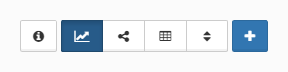
At the top of the screen you will see a number of icons:
| Button | Comment |
|---|---|
Information |
This opens a window listing a number of Key Performance Indicator or Key Operating Metrics ideas. This content is taken from the C12 Member binder in the Solid Foundations section. |
|
Charts |
This button displays each of your KPI charts in a vertical list down the screen. You can scroll through each KPI vertically. Most of your day to day interaction with your KPIs will take place from this view. Learn more in KPI Basics. Below the KPI Charts you will find a list of any KPIs which you have previously "archived". An archived KPI is simply set aside as inactive. You can subsequently Delete or Restore an archived KPI. |
Sharing |
KPIs may be "shared" in a number of manners. This button permits you to share the KPI with one or more of your groups. You can also choose to NOT share a KPI, which means that it is not visible to your C12 group. This is useful for the scenario where you are tracking information but are either not ready to share it with your group (i.e. your still "test-driving" a particular measure, or when you want to continue to track a value, but it is no longer necessary to share it with your group). |
Spreadsheet |
You can view each of your KPIs in a tabular format for quick and easy data entry of multiple values. |
Add new KPI |
Add a new KPI. |

Chart View
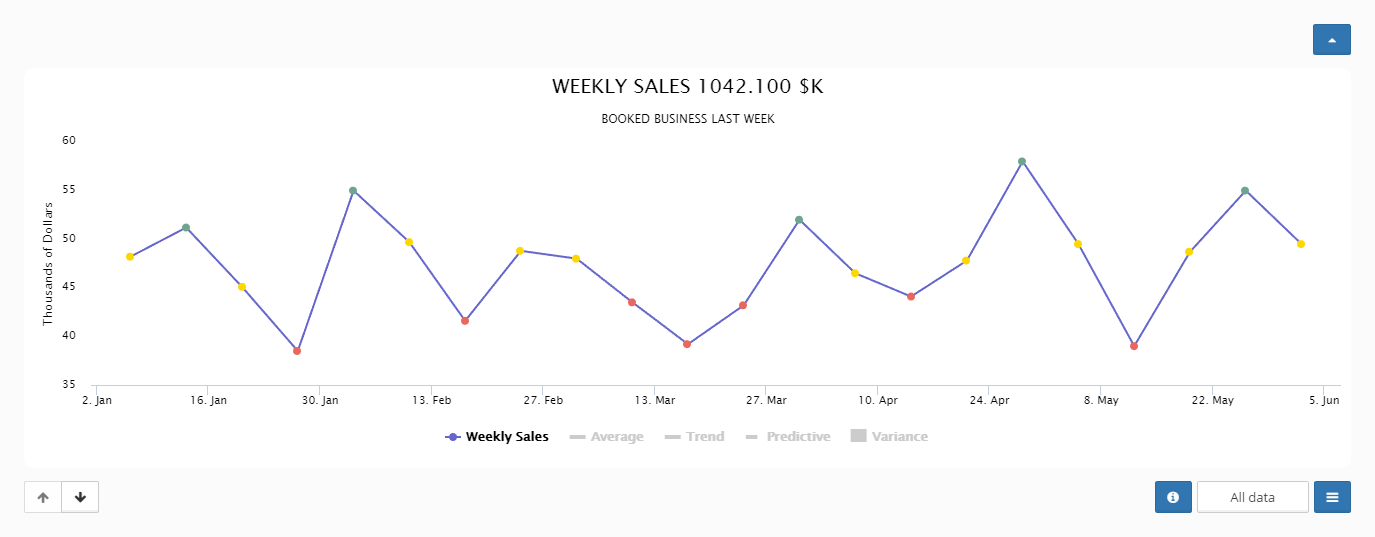
In the Chart View, each of your KPIs are listed in sequence vertically.
Sharing View
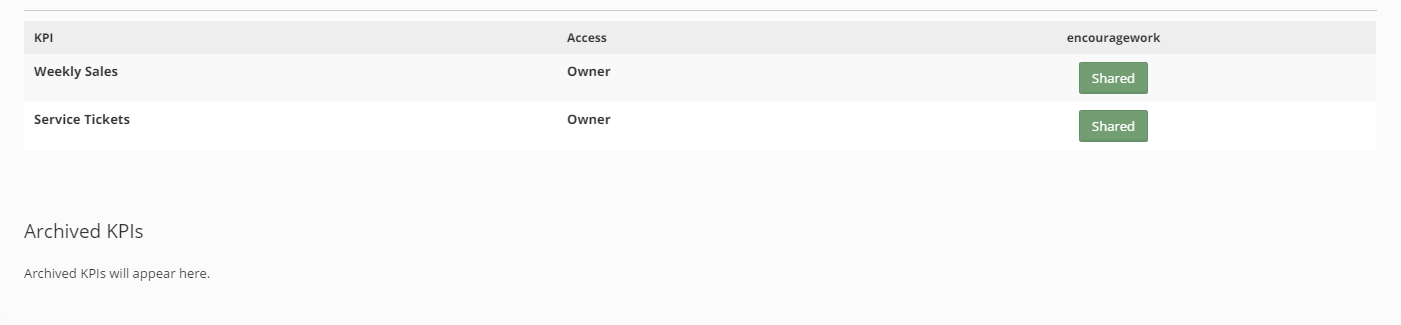
In Sharing view, you have a tabular view where you can easily grant and withdraw sharing of a KPI amongst your relevant groups.
Spreadsheet View
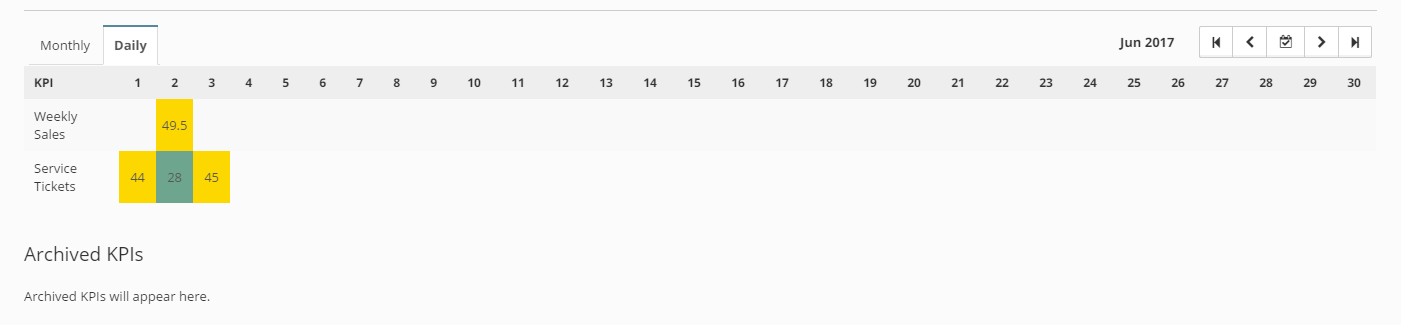
The spreadsheet view permits you to easily and quickly enter your KPIs.
Monthly and Daily KPIs are shown in distinct views
Add New KPI
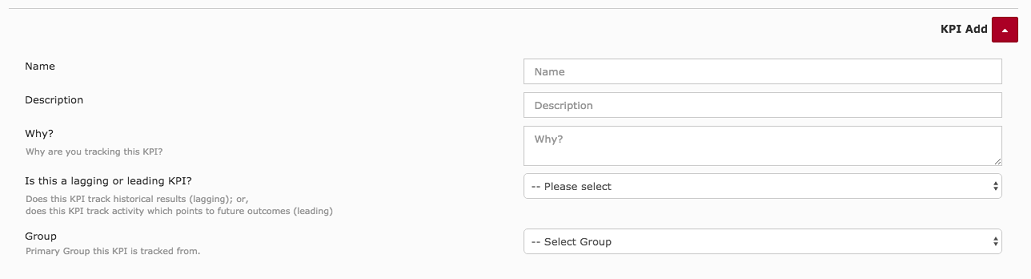
When you add a new KPI, you provide just the basic information. A number of default settings will be applied.
Commentary
The KPI capabilities in Barnabas are designed around the way most of us live and work -- in overlapping groups -- and with information coming from various sources. Over time the features have matured into a set of tools to meet a variety of needs and work-styles.
In the C12 meeting context, you will generally be recording Monthly values -- some leading, some lagging. Some of the features shown will apply to groups which are managing KPIs in their own organizations and working with active dashboards and scorecards.
KPI Basics
There are a number of knobs and dials to adjust the KPI experience. In the main KPI Chart view, each KPI is displayed in a rectangular box.
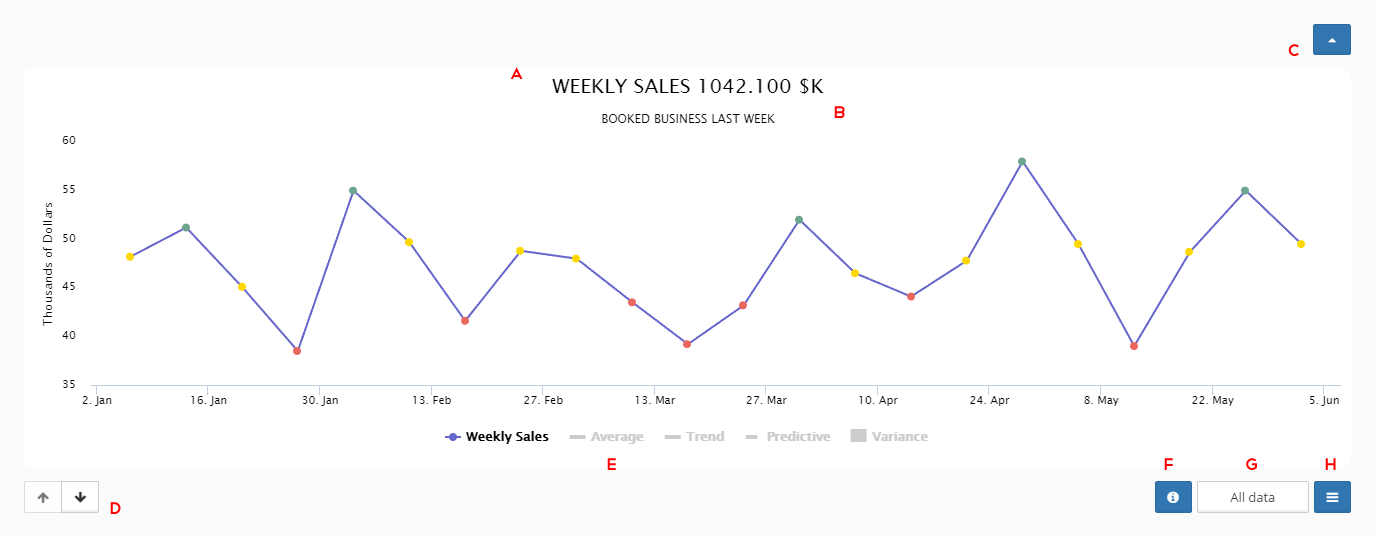
| Note | Comment |
|---|---|
| A | The name of the KPI is listed at the top of the Chart. In this example, the title of the KPI is "MSP Monthly Contract Revenue". |
| B | Optionally, you can sum the values and display the sum of the values in the time period chosen. In this example the sum of the KPI value over the past 13 months (Aug 15 -> Aug 16) is $557,410. |
| C | To minimize (or effectively hide) this KPI, toggle this button. |
| D | Use the Up and Down arrows to change the order in which the KPI is displayed relative to the other KPIs in this view. |
| E | Beneath the chart you can optionally display "overlays" for Average value, Trending value, Predictive value. These overlays change as you change the time-frame of the chart. |
| F | To see information about this KPI, such as who owns it, who has access to it, etc. |
| G | You can change the time-frame of KPI data shown in the chart. This example is showing 13 months. For monthly KPIs you can choose between 6 months, 12 months, 13 months, This Year, Last Year, All Data. |
| H | To access additional features such as settings, adding values, etc, select the menu button. |
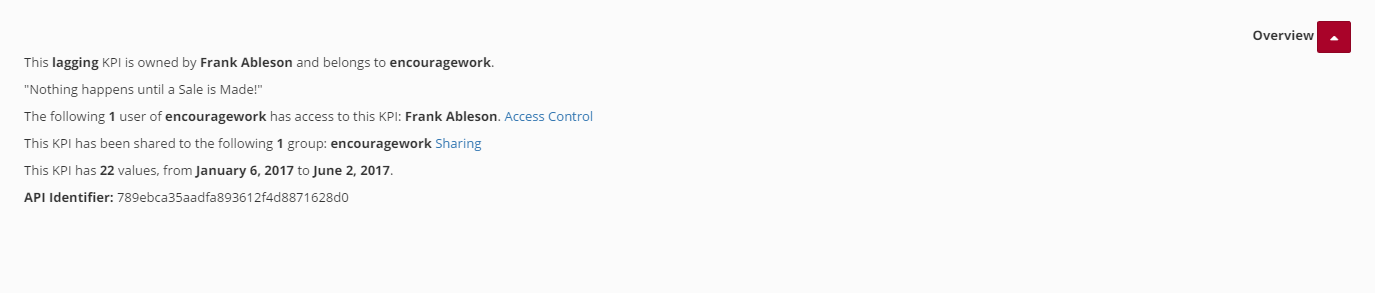
Here is an example of the information available in the "Information Section" (F in the table above).
Available Time Frames (G in table above).
| Monthly KPI | Daily KPI |
|---|---|
| This Week | |
| Last Week | |
| 1 Month | |
| 3 Months | |
| This Month | |
| Last Month | |
| This Year | |
| Last Year | |
| 6 Months | 6 Months |
| 12 Months | 12 Months |
| 13 Months | 13 Months |
| All Data | All Data |
Commentary
As you work with your KPIs over time you will get a sense of what time-frames matter and the best way in which to represent the data. It is helpful to toggle between the available time-frames so you can get a sense of whether your organization's condition is improving or not. Don't be surprised if the Trend line changes its slope in different time-frames. These are all tools to help you manage your organization.
KPI Management
Access the button associated with your KPI to display the menu of available options.

Add KPI Value
Each KPI entry has three values:
- Date/Time
- Value
- Optional Comment
Datasheet & Thresholds
The Datasheet and Thresholds view provides an integrated experience to adjust Thresholds as well as enter individual values in a quick and straight-forward manner.
Any Threshold values entered (high/low or green/red) are automatically "carried forward" from the date they are entered.

Overlays
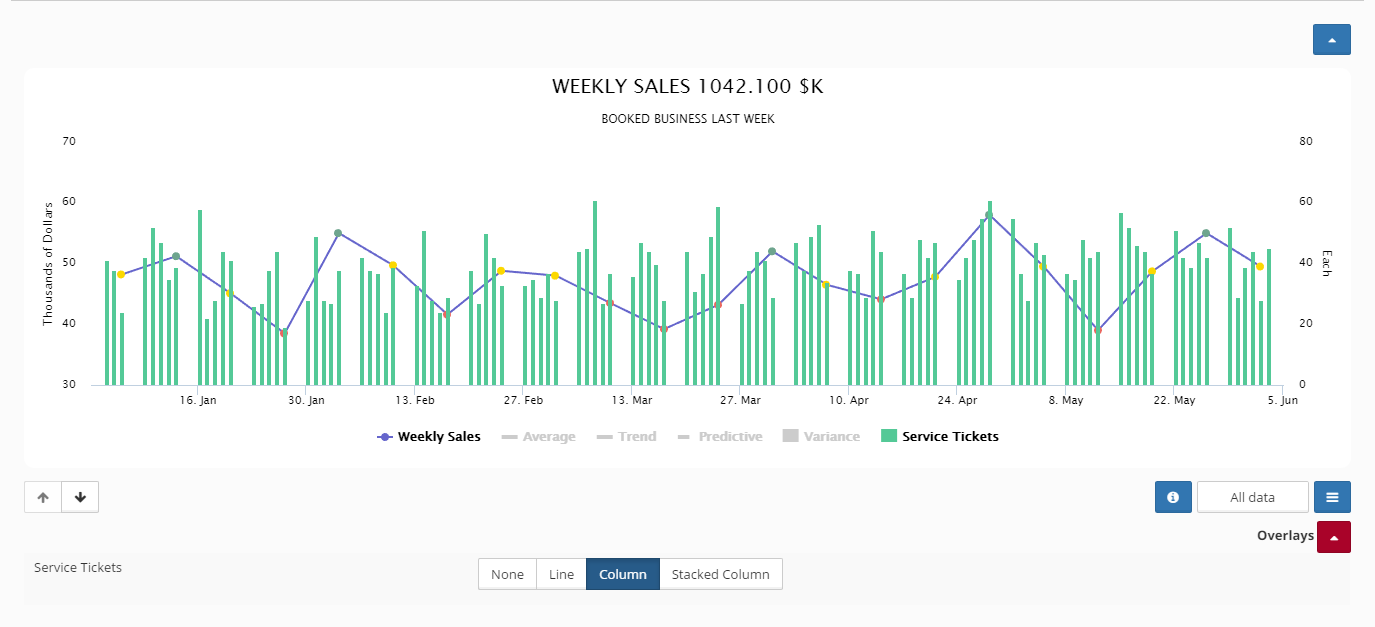
Overlays permit you to display multiple KPIs on a single chart for comparison purposes. When you select the Overlays menu, you are presented with a list of all of the available KPIs for applying as an Overlay. The options available include:
| Setting | Comment |
|---|---|
| None | Do not inlcude this KPI as an Overlay. |
| Line | Display this KPI as a Line Overlay. |
| Column | Display this KPI as a Column Chart. |
| Stacked Column | Display this KPI in a "Stack" along with any other "Stacked Column" Overlays. |
Publish KPI
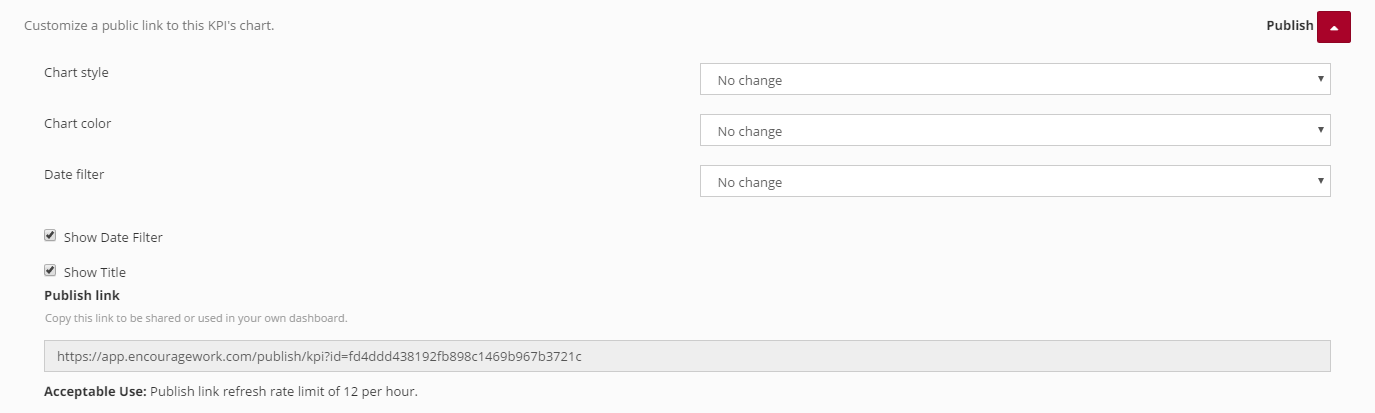
Publishing a KPI makes the KPI chart available to anyone to whom you send the "link" to. You can adjust a few settings of the KPI to change its appearance. Use the link in any other web-based application -- either in a top level window or in an iframe. If you don't know what that means, give us a call and we can help.
You can refresh the link up to 12 times per hour, which supports an underlying data granularity of 5 minute intervals. This is a common approach when measuring things like Energy demand in kW or similar.
Export chart data to Excel
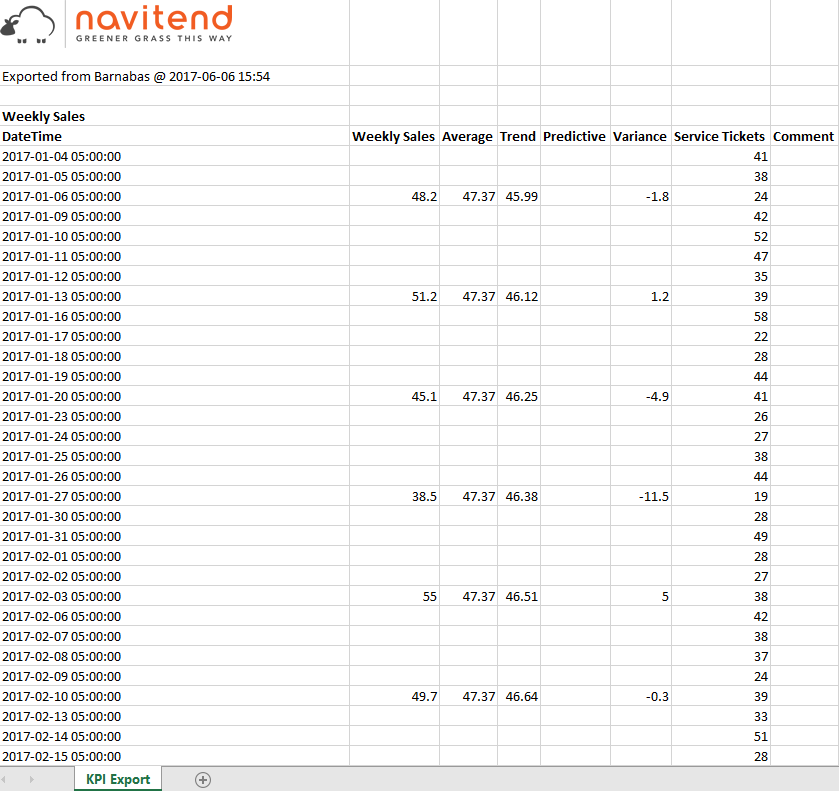
Selecting the Export menu will create a Excel compatible document (xls format) with a full history of your data. Note that the data also includes the optional data overlays including Average, Trend and Predictive. Also, if any other overlays are enabled, those values will be included in their coincident months.
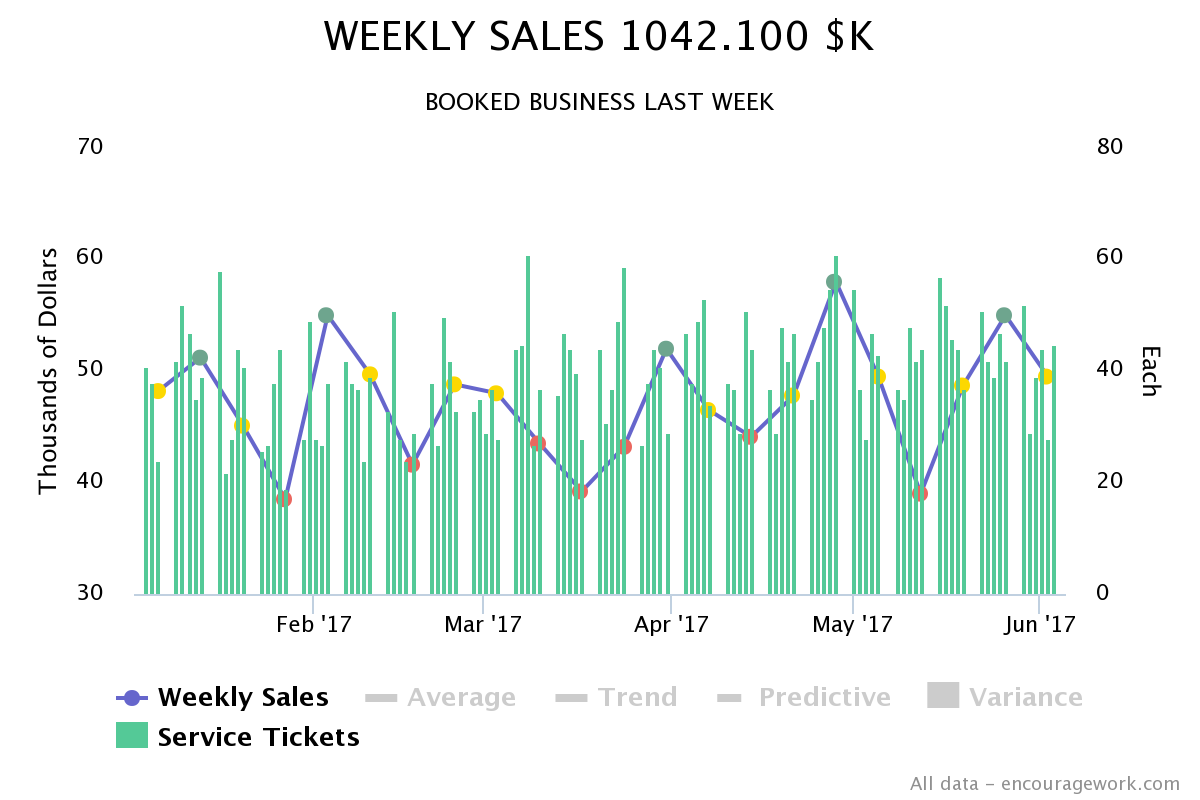
Download Image
Select the Download Image to export a png image of the active chart.
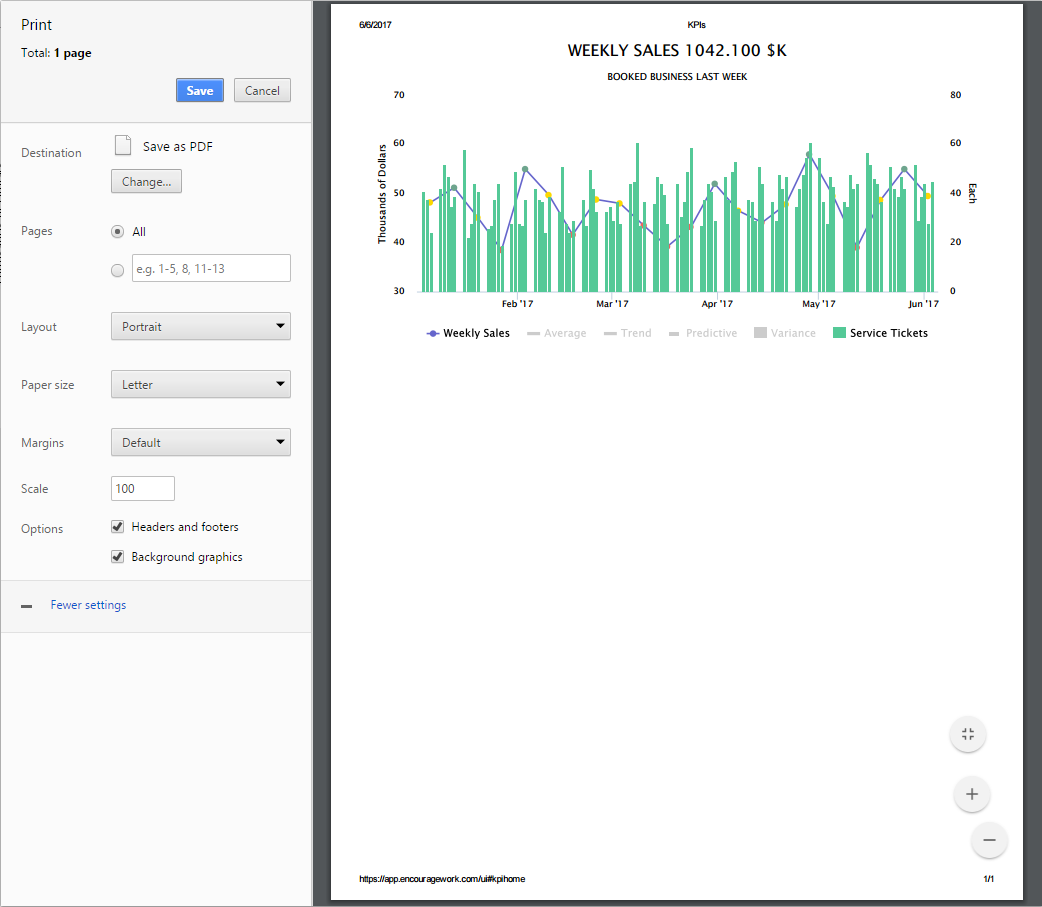
You can also Print the active chart directly by selecting the Print menu option.
Settings
The Settings menu opens a window to further manage the look, feel and behavior of your KPI.

Commentary
Take your time going through these options. A little bit of time invested now to be comfortable working with KPIs in Barnabas will yield a satisfying experience over time as the numbers and relationships develop.
KPI Settings
Here are the various settings available to adjust the KPI experience.
| Section | Comment |
|---|---|
| Name | What do you call this KPI? |
| Description | The KPI Description is shown beneath the name of the KPI and should be used to provide some clarity to the meaning of the data. |
| Why? | Why do you track this KPI? Be specific. Why does this KPI matter to the success of your organization? |
| Group | If you are in more than one Barnabas Group, you need to select which Group this KPI is primarily associated with. |
| Time Scale | Is this KPI tracking Monthly, Daily, Hourly or data down to the minute. By default, C12 Members and Key Players work with Monthly data. For more information on tracking data at a finer granularity, please contact support@barnabas.io. |
| Value Direction | Does this KPI get better when the number is higher or lower? Think about the difference between a good golf score and good basketball score. |
| Lagging or Leading? | Like the "Why?" question, think about whether this KPI is reporting on data that is "after the fact" or if it is truly a measure of activity that will LEAD to fruitful outcomes in the future. |
| Unit of Measure | What are you measuring? Dollars? Millions of dollars? Percentages? Hours? Minutes? If you need a unit of measure which is not currently available, please contact us at support@barnabas.io. |
| Chart Style |
There are a number of chart styles to choose from. Your best bet is to experiment to see which style best conveys your data. The options available to you include:
|
| Chart Color | All of the charts are available in two "themes": light and dark. |
| Series Color | If you want to customize the color of the line or the column, you can choose your own color. This is helpful for when you have a KPI named "Gold customers" or "Red Orders", etc. Using custom Series color is useful also when you are working with multiple overlays and want to make an intentional choice about the various data as it is plotted against various overlays. |
| Overlay Only | If this checkbox is selected, you are indicating that this KPI should only be available as an "overlay" to other KPI charts. The judicious use of this checkbox can keep your primary dashboard a bit cleaner. |
| Sum Values | If you want to display the sum of KPI values next to the name of the KPI, select this checkbox. This is particularly useful as you change the time-scale on a line or column chart and want to see the "area under the curve". |
| Show on Homepage | If you want to see your KPI chart displayed beneath your ToDo list, select this checkbox. |
| Display in Report | If you want this KPI's most recent value to be displayed in the MyGroup => KPI Summary report (tabular view), select this checkbox. Only five KPIs may be included in the chart. Barnabas will NOT warn you if you have more than five KPIs selected. |
| Copy | Select this button if you wish to Copy your KPI (settings or settings plus data) to a new KPI. This is useful when you want to rapidly setup similar KPIs or if you want to test on a copy of an existing KPI. |
| Transfer | You can transfer the ownership of a KPI from one Barnabas user to another. In order to transfer a KPI, both users must be in the same group. This is typically used beyond the C12 context, however there are some groups where there are multiple users from a single organzation and you want to transfer the responsibility from one user to another. |
| Archive | If you want to set this KPI and its historical data aside, select the "Archive" button. |
| Delete | If you're done with the KPI and its data, select the Delete button. |
| Access Control |
If you want to delegate reading, writing or administrative control over this KPI, you select the Access Control button. For each eligible Barnabas user (Members of the same group listed above as the primary group fo rthis KPI), you can grant the following access:
|
| KPI Sharing | If you want to grant or revoke visiblity of this KPI amongst Groups (not specific users), selec the KPI Sharing button. |
| API Identifier | If you want to automate the management of this KPI, you will require the API identifier. For more information on KPI automation via API, please contact support@barnabas.io. |
Commentary
Again, take your time and experiment with different settings until you find the right combination of look and feel to convey the information you need to about your data.
KPI Overlays In Depth
Overlays add depth and contrast to the KPI experience. The associated video provides an in-depth example of working with Overlays. Here are some general concepts and tricks to getting the most out of KPI Overlays:
| Topic | Comment |
|---|---|
| Setting Series Color | If you are going to have overlays, be specific about the colors of your data. |
| Overlay Only | If you are going to use "Stacked Columns" you will likely have a number of KPIs which you do not necessarily want to look at on their own. |
| Mix Column and Line Charts | Too many line charts can be dizzying. Look to have your primary KPI be a column chart and then overlay a small number of line charts. |
| Coincident Time line | Pay attention to making sure that the data you want to compare has consistent time-frames. For example, if you are comparing revenues versus costs, be sure to use the same time frame for consistent and accurate conclusions. |
Commentary
Learning how to use Overlays effectively can greatly enhance your experience with Barnabas KPI charts.
My Account
Managing Your Profile
As a user of Barnabas, you have a number of features and settings that you can customize.
To access things like your company name, your physical address, your email preference and more, select the "My Account" menu on the left hand side of the application.
Beyond the basics of demographic information, you can also choose from the NAICS codes for an "Industry".
Note the checkbox at the bottom of the screen where you can choose to opt-out of inclusion in the Member Directory.
Each Barnabas user has one or more "Roles".
Each Role has specific attributes which control how the application behaves. To modify those roles, click on the "Member" link next to the role. Most users will have only a single role corresponding to their C12 CEO or Key Players group. Chairs and teams utilizing Barnabas within their own organizations will have multiple Roles to choose from.
The Role Edit screen displays a number of parameters to customize.
Let's review the available settings in the Role Edit screen:
Weekly ToDo accountability emailIf you want to receive an email each Sunday evening with a summary showing each member and their progress towards their ToDo execution, select this checkbox. If you are in more than one group, you will see all of your groups and the appropriately partitioned Members and their ToDos in each respective group. To learn more about Multiple Group Membership, click here.
Receive real time prayer request emailsWhen a Prayer Request is recorded in Barnabas, the user has the option of requesting that other members be notified right away. If you want to receive prayer requests associated with this particular group in real-time, select this checkbox.
Recive monthly meeting reminder emailBarnabas sends out meeting reminders a few days ahead of the scheduled meeting, as directed by the C12 Chair for the group. If you wish to receive these emails, select this checkbox. Otherwise, clear the check box to opt out of the meeting reminder emails.
Send KPI entry link to alternate recipientThe monthly meeting reminder email contains a link to record your Monthly KPI values. A small number of members use this feature to send the invitation to their Executive Administrator who then keys in the KPI values. This feature will be removed from Barnabas in a future release.
KPI Timing (Monthly, Daily, Hourly, Minutes)KPIs may be managed in Barnabas in one of four time-frames: Monthly, Daily, Hourly, Minute. C12 Members can only access and record ToDos at the Monthly level. Barnabas is available for use in your own organizations on a commercial basis. Subscribers can record KPI values at a finer granularity to support activities such as dashboards and Scorecards as used in popular business execution practices such as Traction/EOS and Rockefeller Habits.
Chart Style Package (Basic, Advanced)All C12 Members have access to the full complement of KPI charting capabilities.
Weekly Prayer accountability emailIf you would like to see the most recent Prayer Requests associated with this group, select this checkbox. The Prayer Requests are sent along with the weekly ToDo reminder email.
Today Pray AppIf you would like to use the TodayPray app, select this checkbox.
Today Pray app notification recipientIf you would like to opt out of receiving TodayPray notifications, leave this field empty. Otherwise, record your email address.
Core Business Presentation
To export a PDF of all of your past year's data from Barnabas including:
ToDos
Books/Course Completed
KPI charts
select the Core Business Presentation link at the bottom of the My Account page.
Commentary
If there are features about Barnabas that you have heard about but cannot seem to access, please have a look at the My Account area to make sure you have all of the desired features enabled.
Likewise, if there are emails that you have received that you would like to opt-out of, this is the place to make your selection. Before you opt out of Barnabas emails, you are encouraged to stick with it for a couple of months and see if the reminder emails encourage you to completion on your ToDos, bring you to prayer for concerns raised in the prior meeting, and generally bring you into closer connection with your peers.
General
Multiple Groups
Within Barnabas, a typical C12 CEO Member or Key Player exists in a single group. If this describes you, section is not for you. If you are a C12 Chair, a C12 Member looking to bring Barnabas into your own organization, or are just curious, read on!
If you are a C12 Chair, you are in more than one group within the Barnabas context. You are in the "C12 Chairs" group as a Member and you are both the "Chair" and typically a "Member" in each of your CEO and KP groups. You may also be a Member in a regional Chair group.
If you are a member of a C12 CEO group, you are either the CEO, President, General Manager, Owner or some similar title of your own company. You are considered a "Member" in Barnabas terms.
If you are a member of a C12 Key Players group, you have a strategic role in your sponsoring CEO's company. You are considered a "Member" in Barnabas.
Some C12 companies use Barnabas in their own companies in addition to their C12 membership experience. In this context, the CEO would have multiple roles:
You are a Member of your C12 group.
You are the Admin of one or more Barnabas Teams (In this context -- Teams and Groups are interchangeable).
You are typically a "Member" of each of the Barnabas Teams established for your organization.
For example, here is how Barnabas is used in my own world:
I am a Member of my C12 group in Philadelphia.
I have a Key Player (Vincent) who participates in a KP group in Northern New Jersey -- he is a Member of the NNJ Key Player's group.
I am both an Admin and a Member in additional groups:
navitend (for our entire staff)
navTraction (for our executive leadership team)
navDevelopment (our software development team)
navMarketing (myself and one other staffer who are responsible for marketing activities)
Ableson Family (yes, my older kids get those Sunday night emails also!)
Vincent is both Admin and Member for the navNetworking team. Each of our networking technicians is a Member in this group.
While this list may look overwhelming, in reality, it maps exactly to the way in which we operate.
Sharing
When you have more than a single Membership Role within Barnabas, you will have many opportunities to "share" information across those groups -- IF you want to!
For example, I may have a monthly ToDo that I commit to completing by my next meeting. If I want to "share" this information with one or more of my groups, I can do so easily.
I may have a ToDo in for my Marketing team and there is no reason to share that information with the Networking or Software Development teams.
However, for me, I want and need to see everything in one place. Multiple groups in Barnabas enables this.
Likewise, KPIs are often shared amongst team member. Let me give you an example.
One of the key operating metrics we have in our IT support business is "Response Time". This information is useful for both Vin's KP group and for my CEO group. It does not make sense for us to key that information in twice. And, that data is managed by Vin. So, we have established that KPI within our "navitend" group (team) and then the information is shared with each of our respective C12 groups. In this manner, there are actually multiple interested parties having access to the information, yet it is managed in only a single place.
You will want to learn more about how KPIs are managed to get the larger picture, but hopefully this example helps to paint the picture of how data can be shared across organizational boundaries in a predictable and responsible manner.
Commentary
From the outset, Barnabas was built with the idea that each of us live and operate in overlapping communities. These communities overlap at work, at church, at home and beyond.